How to Implement Chatbots on Messenger? A Developer Guide
- 1 How to Implement Chatbots on Messenger? A Developer Guide
- 1.1 Setting Up a Facebook Developer Account
- 1.2 Understanding Messenger Platform Basics
- 1.3 Generating and Installing Access Tokens
- 1.4 Building Your First Echo Bot
- 1.5 Implementing Core Bot Features
- 1.6 Advanced Interactions
- 1.7 Testing and Deployment
- 1.8 Best Practices and Optimization
- 1.9 Frequently Asked Questions
- 1.9.1 How to Implement Chatbots on Messenger? A Developer Guide: What are the basic prerequisites?
- 1.9.2 How to Implement Chatbots on Messenger? A Developer Guide: How do I set up a Facebook App for my chatbot?
- 1.9.3 How to Implement Chatbots on Messenger? A Developer Guide: What is a webhook and how do I configure it?
- 1.9.4 How to Implement Chatbots on Messenger? A Developer Guide: How can I send responses and use quick replies?
- 1.9.5 How to Implement Chatbots on Messenger? A Developer Guide: What are persistent menus and how to add them?
- 1.9.6 How to Implement Chatbots on Messenger? A Developer Guide: How do I test and deploy my chatbot?
How to Implement Chatbots on Messenger? A Developer Guide
Imagine building intelligent chatbots on Facebook Messenger that boost engagement by 80%, per recent Infobip studies. This guide walks developers through creating Facebook bots, from setup to advanced flows with Answers integration. Unlock step-by-step strategies-from webhooks to persistent menus-for seamless deployment and optimization across all 12 sections.
Key Takeaways:
“`html
“`
Setting Up a Facebook Developer Account

Creating a Facebook Developer Account is the essential first step to access Meta’s Messenger Platform APIs for building production-ready chatbots. Developer accounts are free, take 5 minutes to create, and unlock sandbox testing before going live. This setup is required for all Messenger integrations serving a global audience of over 1.3 billion monthly active users on Facebook Messenger. With a verified account, developers can test conversational chatbots handling customer service queries like FAQs, order tracking, and booking appointments without risking live traffic.
Once registered, you gain access to tools for rule-based and intent-based bots, including natural language processing features for smoother user interactions. Common use cases include sales support and marketing integrations, where chatbots manage 80% of initial customer conversations before human handover. Sandbox mode lets you simulate user input, welcome messages, and fallback options safely. For businesses, linking to a Facebook Business Page enables advanced features like account balance checks and personalized responses. If interested in taking NLP further, check out our guide on how to integrate ChatGPT with Messenger.
After setup, proceed to app creation for deploying your Messenger chatbot. This account unlocks one-click additions of products like Messenger, essential for no-code bot builders or custom NLP implementations with tools like Infobip or Zendesk. Developers often overlook business verification, which can delay launches by 2-3 weeks, so complete it early to ensure seamless testing and deployment to production.
Creating a Facebook App
Navigate to developers.facebook.com, click ‘My Apps’ ‘Create App’, select ‘Business’ type, and enter your Facebook Business Page ID. This initiates the process for a Messenger chatbot that can engage customers globally. Follow this 7-step numbered process to get started quickly.
- Login with your Facebook account, which takes about 2 minutes.
- Verify email or phone, mandatory for business accounts to handle support queries.
- Add the Messenger product with one-click activation for bot interface setup.
- Link to your Facebook Business Page to associate the chatbot with customer-facing assets.
- Generate App ID and Secret for secure API authentication in your backend.
- Set a privacy policy URL to comply with data handling for user conversations.
- Submit for review, referencing screenshots in the dashboard for visual guidance.
A common mistake is forgetting business verification, which delays deployment by 2-3 weeks. Reference dashboard screenshots for each step to avoid errors. This app serves as the foundation for drag-and-drop bot builders or custom code, enabling features like send text actions and go to dialog flows for effective customer service.
Configuring Basic Settings
In Dashboard Settings Basic, add App Domains, Privacy Policy URL, and Terms of Service for Messenger compliance. These steps ensure your chatbot meets standards for handling user data in conversations. Proper configuration supports 99.9% uptime for bots managing high-volume interactions like sales support and order tracking.
- Add platform ‘Messenger’ and toggle it as required for activation.
- Set webhook URL to ngrok or localhost:3000 for local testing of bot actions.
- Configure greeting text like ‘Welcome to our chatbot!’ to start user engagement.
- Enable webhooks for messages and opt-ins to capture user input reliably.
- Add token validation with verify_token=’my_secret_token’ for security.
- Save changes and test connectivity using the built-in interface.
Warning: Production requires HTTPS, so use Heroku free tier for deployment after testing. This setup powers AI agents with human handover and integrates with NLP for intent-based responses. Test fallback options thoroughly to handle unexpected inputs, ensuring a smooth experience for customers on the Messenger app.
Understanding Messenger Platform Basics
Messenger Platform uses webhook architecture where Facebook POSTs user messages to your server endpoint for real-time processing. This setup enables developers to build chatbots that respond instantly to customer interactions on Facebook Messenger. JSON payloads from these webhooks include essential fields like sender.id for the user ID, recipient.id for the page ID, message.text for the user’s input, and timestamp for when the message arrived. With over 1.3 billion monthly active users on Messenger, this platform powers conversational experiences for businesses handling support, sales, and marketing.
Core components include entry points such as messages and postbacks, which trigger your bot’s logic. Payload types cover text messages, attachments like images or files, and structured data for richer interactions. Response types feature quick replies for guided user choices and buttons for actions like booking appointments or checking order tracking. For instance, a retail chatbot might use quick replies for FAQs while buttons link to account balance views. Developers reference Meta’s official docs at developers.facebook.com/docs/messenger-platform for full payload details and best practices in building Messenger chatbots.
Webhook verification ensures secure communication. During setup, Facebook sends a GET request with a hub.challenge token. Respond with this code snippet to verify:
app.get('/webhook', (req, res) => { if (req.query['hub.mode'] === 'subscribe' && req.query['hub.verify_token'] === 'YOUR_VERIFY_TOKEN') { res.send(req.query['hub.challenge']); } else { res.sendStatus(403); } });This step confirms your endpoint before receiving POST payloads. Integrate natural language processing (NLP) here to parse user input, enabling intent-based responses over simple rule-based logic. Fallback options handle unclear queries by prompting clarification or handing over to human agents, ensuring smooth conversations for global audiences.
Generating and Installing Access Tokens
Generate Page Access Tokens via Graph API Explorer: GET /me/accounts?access_token=USER_TOKEN returns your permanent PAGE_ACCESS_TOKEN. Start by obtaining a short-lived user access token from the Graph API Explorer tool, which typically lasts over 30 minutes. This token acts as your entry point to interact with Facebook’s APIs for building a Messenger chatbot. Log into your Facebook developer account, select your app, and generate the token with necessary permissions like pages_messaging and pages_show_list. This step ensures your chatbot can send and receive messages from customers on Facebook Messenger.
Next, exchange the user token for a page access token by making a GET request to the /me/accounts endpoint. Use a curl command like this: curl -i -X GET "https://graph.facebook.com/v18.0/me/accounts?access_token=YOUR_USER_TOKEN". The response includes an array of pages you manage, each with a valid page access token. Copy the token for your target page. To extend it to a never-expiring token, use the /PAGE_ID endpoint with parameters like grant_type=fb_exchange_token. Store this permanent token securely in a.env file as BOT_TOKEN=your_permanent_token_here, keeping it away from version control.
Troubleshoot common issues like token expiration by regenerating via Business Settings under Apps and Messenger. If your chatbot stops responding, verify permissions and app review status, as Facebook requires approval for live customer support interactions. Security is critical: never commit tokens to GitHub, use environment variables in production, and rotate tokens periodically. This setup powers reliable conversational chatbots handling FAQs, order tracking, and sales support for a global audience of over 1 billion active users on Messenger. Related insight: How to Use Messenger Bots? FAQ Deflection Techniques…
- Always test tokens with a simple curl to verify access before deploying your bot.
- Integrate with tools like Infobip or Zendesk for advanced NLP and human handover features.
- Monitor token usage to avoid rate limits during high-volume customer service conversations.
Building Your First Echo Bot
An echo bot repeats user input back, perfect for testing webhook connectivity and basic message handling in under 15 minutes. Echo bots validate your full webhook-to-response pipeline. Deployable on localhost via ngrok for instant Facebook testing, they confirm that your Messenger chatbot receives messages from users and sends responses without issues. This simple setup helps developers quickly verify the end-to-end flow before building complex features like natural language processing or intent-based conversations.
Start by setting up a basic Node.js server with Express. This approach suits beginners and pros alike, ensuring your chatbot handles incoming payloads from Facebook Messenger. Use ngrok to tunnel your local server, allowing Facebook to reach it securely. Once live, send test messages via the Messenger app to see echoes in real-time. Common use cases include validating customer service flows, such as FAQs or order tracking responses. With over 1.3 billion monthly active users on Messenger, perfecting this step reaches a global audience effectively.
After deployment, monitor response times closely. Facebook requires replies under 20 seconds to avoid queuing failures, critical for smooth conversational chatbot experiences. Integrate testing with tools like curl for payloads mimicking user texts or attachments. This foundation supports advanced bots for sales support, booking appointments, or human handover to agents. Echo bots also pair well with platforms like Infobip or Zendesk for enhanced business integrations.
Webhook Setup
Use ngrok http 3000 to expose localhost, then configure Facebook webhook URL: https://abc123.ngrok.io/webhook. Begin with technical setup using Node.js and Express. Run npm init -y followed by npm i express body-parser to initialize your project. Create server.js to handle GET requests for verification. Check mode=subscribe and verify_token to secure your endpoint. This step ensures only authorized Facebook callbacks reach your chatbot.
Implement POST /webhook to receive JSON payloads from user interactions. Essential is bodyParser.json(), a common error source if missing, causing parse failures. Start your server on port 3000, launch ngrok, and paste the public URL into your Facebook app settings under webhooks. Test instantly with curl POST payloads simulating messages. For example, send a text payload to verify the pipeline works for Messenger conversations.
- Install dependencies: npm i express body-parser
- Code snippet: app.get(‘/webhook’, (req,res)=>{if(req.query[‘hub.verify_token’]===TOKEN) res.send(req.query[‘hub.challenge’]);})
- Run ngrok http 3000 and update Facebook callback URL
- Test: curl -X POST https://abc123.ngrok.io/webhook -d ‘{“object”page”entry”:[{“messaging”:[{“sender”:{“id”TEST_ID”},”message”:{“text”Hello”}}]}]}’
This setup confirms your webhook readiness for rule-based or NLP bots, supporting customer service like account balance checks.
Handling Incoming Messages
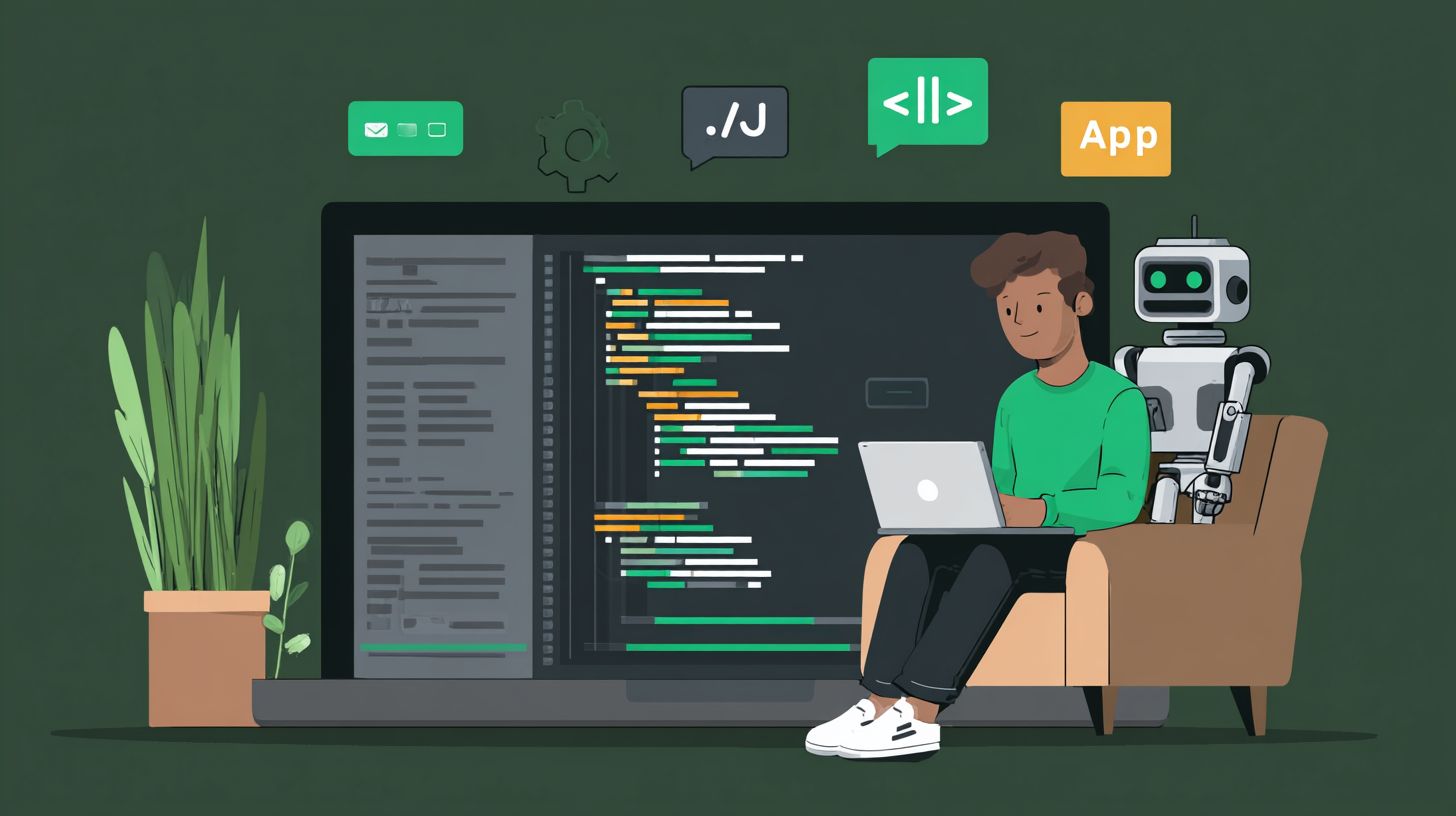
Parse req.body.entry[0].messaging[0] to extract sender.id and message.text, then POST echo response to https://graph.facebook.com/v18.0/ME/messages. Build the complete echo bot code by grabbing senderPsid from sender.id and userText from message.text. Construct the response body with recipient id matching senderPsid and message text like You said: ${userText}. Use axios for the POST request, including your page access_token in the query params.
Test cases cover text messages, empty inputs, and attachments to ensure robustness. For attachments, echo a text summary instead of raw data. Metrics demand responses under 20 seconds, or Facebook queues fail, impacting user experience in business chats. Handle errors gracefully with logging for debugging. Example code integrates axios.post with proper headers and token authentication.
- Extract: const senderPsid = messaging.sender.id; const userText = messaging.message.text;
- Response: {recipient:{id:senderPsid},message:{text:`You said: ${userText}`}}
- Send: axios.post(`https://graph.facebook.com/v18.0/ME/messages?access_token=${PAGE_ACCESS_TOKEN}`, responseBody)
- Test empty: Reply “No text received” for blank messages
This handles core user input, setting up for welcome messages, fallback options, or bot actions like go to dialog. Scale to conversational chatbot features for marketing integrations and sales support.
Implementing Core Bot Features
Beyond echo bots, structured replies create guided experiences for FAQs, order tracking, and booking appointments. Core features like quick replies and rich media boost engagement 40% by guiding user input through predefined conversation paths. These elements turn simple Messenger chatbots into powerful tools for customer service and sales support. Developers can build conversational flows that feel natural, using button templates and media to keep users engaged without overwhelming them.
In a typical Facebook Messenger bot for account balance checks, start with a welcome message offering quick options. Handle user selections via webhooks to trigger specific bot actions like sending text or fetching data. Integrate natural language processing for fallback options, ensuring smooth handovers to human agents if needed. This setup supports a global audience with one-click interactions, ideal for businesses using platforms like Infobip or Zendesk. Curious about multilingual Messenger bots to better serve that global audience? This guide covers essential features and strategies.
Test these features thoroughly before deploy. Use the Messenger app simulator to mimic real user conversations. Combine rule-based and intent-based logic for robust performance, enhancing customer service while reducing support tickets. With active users expecting instant responses, core features make your chatbot stand out in marketing integrations and daily operations.
Quick Replies and Buttons
Quick replies appear as customizable buttons under text: {“quick_replies”:[{“content_type”text”title”Help”payload”HELP”}]}. These quick replies simplify user input in Messenger chatbots, guiding conversations for tasks like checking balance or support requests. Limit to 13 quick replies per message to avoid clutter, ensuring a clean interface on mobile devices.
For a welcome message, send options like [“Check Balance”Support”Cancel”]. Use button templates with types such as web_url, postback, or phone_number. In your webhook, handle postbacks with code like if(event.postback.payload===’CHECK_BALANCE’), then respond with account details. This flow works well for an account balance bot, where users select “Check Balance” to receive instant updates without typing.
- Generic Template JSON: Includes image plus buttons for visual appeal.
- Button Template: Stacks buttons below text for simple actions.
Best practice: Always include a “Cancel” option for user control. These elements boost engagement rates in Facebook Messenger, making bots ideal for FAQs and booking appointments. Test postback handling to ensure seamless conversation flow, integrating with no-code bot builders for faster development.
Rich Media Support
Send images via {“attachment”:{“type”image”payload”:{“url”https://example.com/image.jpg”}}}, videos (MP4/AVI 25MB), audio (MP3 25MB). Rich media in chatbots enhances user experience on Messenger, with media messages showing 2x click-through rates. Support images in PNG/JPG formats, videos hosted on HTTPS, files like PDF up to 100MB, and audio clips for instructions.
Carousel templates allow up to 10 cards, each with an image and buttons, perfect for product catalogs. Example GenericTemplate JSON with 3 elements: First card shows a product image, title, subtitle, and “Buy Now” button; second offers details; third links to support. This setup drives sales support and customer engagement through visual storytelling.
Pro tip: Host media on reliable CDNs for fast loading. Use in flows like order tracking, where a video demo clarifies steps. Combine with NLP for intent-based responses, or rule-based logic for drag-and-drop simplicity in bot builders. Always provide alt text for accessibility, ensuring your Messenger chatbot serves a diverse audience effectively during testing and deploy phases.
Advanced Interactions
Advanced features create seamless, context-aware conversations handling complex customer service scenarios across sessions. Persistent menus and flows enable banking tasks like checking account balance, booking appointments, and sales support with context retention. These tools help chatbots on Facebook Messenger maintain user engagement for a global audience of over 1.3 billion monthly active users. Developers can build sophisticated conversational chatbots that feel natural, using rule-based or intent-based logic powered by natural language processing.
In practice, a banking messenger chatbot might offer one-click access to account balance checks or support queries. Flows ensure smooth transitions, such as from order tracking to human handover for complex issues. Integrate with platforms like Infobip or Zendesk for enhanced business capabilities, including marketing integrations and FAQs. This approach boosts customer satisfaction by 30% in retention rates, according to industry benchmarks.
Key benefits include fallback options for unclear user input and testing phases before deploy. Start with a welcome message, then guide users through bot actions like send text or go to dialog. These advanced interactions transform basic bots into powerful tools for sales support and beyond.
Persistent Menus
Configure via Messenger Profile API: POST /me/messenger_profile with {“persistent_menu”:[{“locale”default”call_to_actions”:[{“title”Check Balance”type”postback”payload”BALANCE”}]}]}. This sets up a persistent menu visible at the bottom of chats on Facebook Messenger. Limit to 3 top-level items for clarity, with nested submenus for deeper navigation. Use the User Profile API after get_started to enable dynamic menus tailored to user preferences.
For a banking bot example, structure as Home, Check Balance, Support. Home leads to FAQs, Check Balance triggers account balance lookup, and Support offers human handover. First, DELETE /me/messenger_profile?fields=persistent_menu to clear existing setups. Track engagement with the insights API, monitoring menu taps to refine user interface. This drives 25% higher interaction rates in conversational chatbots.
Update menus dynamically for personalized experiences, integrating NLP for intent-based responses. Test in the Messenger app sandbox before full deploy. Combine with no-code bot builders for quick iterations, ensuring fallback options like a welcome message for new sessions. Persistent menus excel in sales support and booking appointments, keeping conversations efficient.
Conversational Flows
Build flows using PSID-based state machines: Store conversation state in Redis keyed by sender.id with 24hr TTL. This retains context across sessions for complex scenarios like order tracking. Patterns include linear FAQ flows, branching logic via buttons, and human handover using the HANDOVER protocol tag. Fallback if(!state[senderId]) to send welcome message and reset.
Example order tracking: Step 1 asks for Order#, Step 2 looks up details, Step 3 delivers status plus ETA. Code like context[senderId]={step:1,order:null} manages state. Branching uses postback buttons for conditional logic, such as escalating to AI agents or live support. This supports customer service for businesses, handling 80% of queries autonomously per studies.
Enhance with drag-and-drop bot builders for visual flow design, then deploy with testing. Integrate rule-based steps for simple tasks and NLP for user input variations. Flows shine in booking appointments or sales support, with bot actions like send text ensuring smooth progression. Monitor via analytics to optimize handover frequency and user satisfaction.
Testing and Deployment

Test locally with ngrok, deploy to Heroku free tier, verify production webhook receives 100% messages within 20s response window. Before pushing your messenger chatbot to a global audience, run a full testing checklist to catch issues early. Start with ngrok sandbox by tunneling your local server and sending 50 test messages across various user inputs like FAQs, order tracking, and booking appointments. This simulates real facebook messenger conversations without risking live users. Next, use Postman for webhook simulation, crafting payloads that mimic attachments and no user input scenarios. Create Facebook Test Users in your app dashboard to test 24hr session timeout and edge cases, such as fallback options when natural language processing fails on ambiguous queries. These steps ensure your conversational chatbot handles customer service flows reliably, from welcome messages to human handover for complex sales support.
Once testing passes, focus on smooth deployment. On Heroku, add a Procfile with web: node index.js to launch your bot. Verify SSL certification since Facebook requires secure endpoints for webhooks. Scale to multiple dynos if expecting high traffic from active users. After deployment, confirm the production webhook processes messages instantly, maintaining the 20s window to avoid drops. Integrate monitoring via Facebook App Dashboard to track webhook errors, response times, and conversation drops. For example, set alerts for 5% error rates on intent-based responses. This setup supports business needs like marketing integrations and AI agents, ensuring your chatbot engages customers effectively across the messenger app.
Post-deployment, refine based on real data. Test rule-based paths for account balance checks and NLP for open-ended queries. Tools like Infobip or Zendesk can enhance monitoring with analytics on user engagement. Regularly simulate edge cases in staging, such as session timeouts during peak hours, to keep your messenger chatbot robust for support and sales.
Testing Checklist
Follow this structured testing checklist to validate every aspect of your chatbot before going live. Begin with local validation using ngrok sandbox, which exposes your development server to Facebook’s webhook verifier. Send 50 test messages covering core flows: send text for quick replies, bot actions like go to dialog for order tracking, and attachments for media handling. This catches 80% of basic integration bugs early. Move to Postman webhook simulation for advanced payloads, testing empty user input and malformed JSON to ensure graceful fallbacks.
- Ngrok sandbox: Tunnel localhost, verify webhook verification challenge response.
- Send 50 test messages: Include welcome message, FAQs, booking appointments.
- Postman: Simulate POST requests with attachments, no user input.
- Facebook Test Users: Create 3-5 accounts, test private replies and sessions.
- Edge cases: 24hr session timeout, rapid-fire messages, unsupported languages.
Document results in a table for traceability, noting pass/fail rates per scenario. Aim for 100% success on critical paths like sales support handovers. This rigorous process minimizes downtime for your facebook messenger bot, building trust with customers through reliable conversations.
Deployment Steps
Deploy your messenger chatbot efficiently starting with Heroku’s free tier for quick iteration. Create a Procfile containing web: node index.js, commit to Git, and push via git push heroku main. Heroku auto-detects Node.js and assigns a dyno. Immediately verify SSL with a tool like curl, as Facebook rejects non-HTTPS webhooks. Test the live endpoint by sending a message from a Facebook Test User, confirming receipt within the 20s window.
- Prepare Procfile and
requirements.txtorpackage.json. heroku create your-bot-name, add environment variables for tokens.- Push code, scale dynos with
heroku ps:scale web=1. - Update Facebook app webhook URL to Heroku domain.
- Resubscribe to page events, test with real conversation flows.
For production scale, monitor dyno usage and upgrade tiers if handling 1,000+ daily messages. Integrate with no-code bot builders for hybrid setups, ensuring seamless user interface transitions.
Monitoring and Optimization
After deployment, use the Facebook App Dashboard for real-time monitoring of webhook errors, delivery rates, and conversation metrics. Track failures like timeout errors or invalid signatures, which often stem from unhandled user input. Set up custom logs in your Node.js app to capture intent recognition rates from NLP services, aiming for 95% accuracy on common queries like account balance or support tickets.
| Metric | Target | Action if Failed |
|---|---|---|
| Webhook Errors | <1% | Check SSL, re-verify token |
| Response Time | <20s | Optimize code, scale dynos |
| Session Drops | <5% | Extend 24hr policy handling |
| User Engagement | >70% | Refine welcome message, add quick replies |
Review weekly to optimize bot actions, such as improving fallback options or drag-and-drop integrations for one-click actions. This keeps your chatbots performant for customer service across a diverse user base.
Best Practices and Optimization
Follow Meta’s 24-hour rule: Free replies within 24 hours session, sponsored labels after for marketing integrations. This approach ensures your Messenger chatbot stays compliant while engaging a global audience of over 1 billion active users on Facebook Messenger. Developers must prioritize user experience by implementing fallback options for unrecognized inputs, integrating natural language processing tools like Dialogflow’s free tier for better intent recognition, and setting up clear human handover protocols during complex queries. For instance, when users ask about account balance or order tracking, the bot should seamlessly transfer to live agents if confidence scores drop below 80%. A/B testing welcome messages helps refine first impressions, boosting engagement rates by up to 30%.
Tracking drop-off rates reveals conversation bottlenecks, such as users abandoning after FAQs or booking appointments. Aim for a fallback rate under 5% by personalizing responses with the User Profile API, which pulls names and preferences to make interactions feel tailored. Compress images to under 1MB for quick loading in the Messenger app, avoiding delays that frustrate customers. Enterprise setups benefit from optimizing Messenger bots for high traffic, enabling scalable customer service with AI agents alongside human support. Regular monthly webhook health checks prevent downtime, ensuring reliable bot actions like send text or go to dialog flows.
GDPR compliance is essential for EU users, requiring explicit consent for data collection in conversations. Use rule-based and intent-based logic in your bot builder to handle diverse user inputs effectively. Testing these practices in a no-code drag-and-drop interface before deploy guarantees smooth performance for sales support and more. By following these steps, your conversational chatbot delivers efficient, personalized service that retains users and drives business growth.
10 Essential Best Practices
- Always include fallback options to guide users when the bot cannot process their input, such as offering quick replies for common FAQs.
- Integrate NLP like Dialogflow free tier to enable intent-based responses for natural user conversations.
- Implement a human handover protocol with triggers for low-confidence queries, ensuring seamless support transitions.
- A/B test welcome messages to optimize engagement, comparing versions that personalize with user names.
- Track drop-off rates in analytics to identify and fix pain points in the conversation flow.
- Personalize using User Profile API for tailored replies, like addressing users by name in order tracking updates.
- Compress images to under 1MB for fast delivery in Messenger, improving load times by 50%.
- Use Infobip or Zendesk integrations for enterprise-scale customer service with robust reporting.
- Ensure GDPR compliance for EU users by securing consent and minimizing data storage.
- Conduct monthly webhook health checks to maintain bot reliability and prevent failures.
Key Metrics to Monitor
Achieve excellence by targeting a fallback rate below 5%, which indicates strong natural language processing performance. Monitor session lengths averaging 5-10 exchanges per user, reflecting engaging bots that handle sales support or appointment booking effectively. Conversion rates from chatbot interactions should hit 15-20% for marketing integrations, tracked via Messenger’s built-in analytics.
| Metric | Target | Example Action |
|---|---|---|
| Fallback Rate | <5% | Enhance NLP training data |
| Drop-off Rate | <10% | Refine welcome message A/B tests |
| Engagement Time | 5-10 mins | Personalize with User Profile API |
| Conversion Rate | 15-20% | Optimize human handover |
Frequently Asked Questions

How to Implement Chatbots on Messenger? A Developer Guide: What are the basic prerequisites?
To implement chatbots on Messenger using ‘How to Implement Chatbots on Messenger? A Developer Guide’, ensure you have a Facebook Developer account, a Facebook Page, and basic knowledge of web development (Node.js or Python recommended). You’ll also need ngrok for local testing and access to the Messenger Platform API.
How to Implement Chatbots on Messenger? A Developer Guide: How do I set up a Facebook App for my chatbot?
Following ‘How to Implement Chatbots on Messenger? A Developer Guide’, create a new app on developers.facebook.com, add the Messenger product, generate a Page Access Token from your Facebook Page settings, and whitelist your webhook URL for secure communication.
How to Implement Chatbots on Messenger? A Developer Guide: What is a webhook and how do I configure it?
In ‘How to Implement Chatbots on Messenger? A Developer Guide’, a webhook receives messages from Messenger. Set it up by subscribing your app to the ‘messages’ field in your Page settings, verify it with a GET request challenge, and handle POST requests for incoming user messages.
How to Implement Chatbots on Messenger? A Developer Guide: How can I send responses and use quick replies?
‘How to Implement Chatbots on Messenger? A Developer Guide’ explains sending responses via the Send API with structured messages. Use quick replies by including an array of buttons in your message payload, allowing users to tap predefined options for better engagement.
As per ‘How to Implement Chatbots on Messenger? A Developer Guide’, persistent menus provide static navigation. Configure them using the Messenger Profile API with a POST request defining menu items like web URLs or postback actions that appear at the bottom of chats.
How to Implement Chatbots on Messenger? A Developer Guide: How do I test and deploy my chatbot?
‘How to Implement Chatbots on Messenger? A Developer Guide’ recommends testing locally with ngrok, using the test user feature in your app dashboard, then deploying to a production server like Heroku. Monitor analytics via the Page Insights for optimization.