How to Use Product Catalog Integrations in Messenger Bots: Guide for E-commerce
Key Takeaways:
- 1 What Are Product Catalog Integrations?
- 2 Benefits for E-commerce Businesses
- 3 Prerequisites and Setup Requirements
- 4 Creating Your Product Catalog
- 5 Integrating Catalog with Messenger Bot
- 6 Configuring Catalog Messages and Ads
- 7 Implementing Dynamic Product Recommendations
- 8 Handling User Interactions and Checkout
- 9 Testing and Optimization Best Practices
- 10 Measuring Performance and Analytics
- 11 Frequently Asked Questions
- 11.1 How to Use Product Catalog Integrations in Messenger Bots: Guide for E-commerce – What are they?
- 11.2 How to Use Product Catalog Integrations in Messenger Bots: Guide for E-commerce – How do I set up a product catalog?
- 11.3 How to Use Product Catalog Integrations in Messenger Bots: Guide for E-commerce – What are the steps to integrate into a bot?
- 11.4 How to Use Product Catalog Integrations in Messenger Bots: Guide for E-commerce – Can I customize product displays?
- 11.5 How to Use Product Catalog Integrations in Messenger Bots: Guide for E-commerce – How do I handle payments and checkout?
- 11.6 How to Use Product Catalog Integrations in Messenger Bots: Guide for E-commerce – What are common troubleshooting tips?
What Are Product Catalog Integrations?
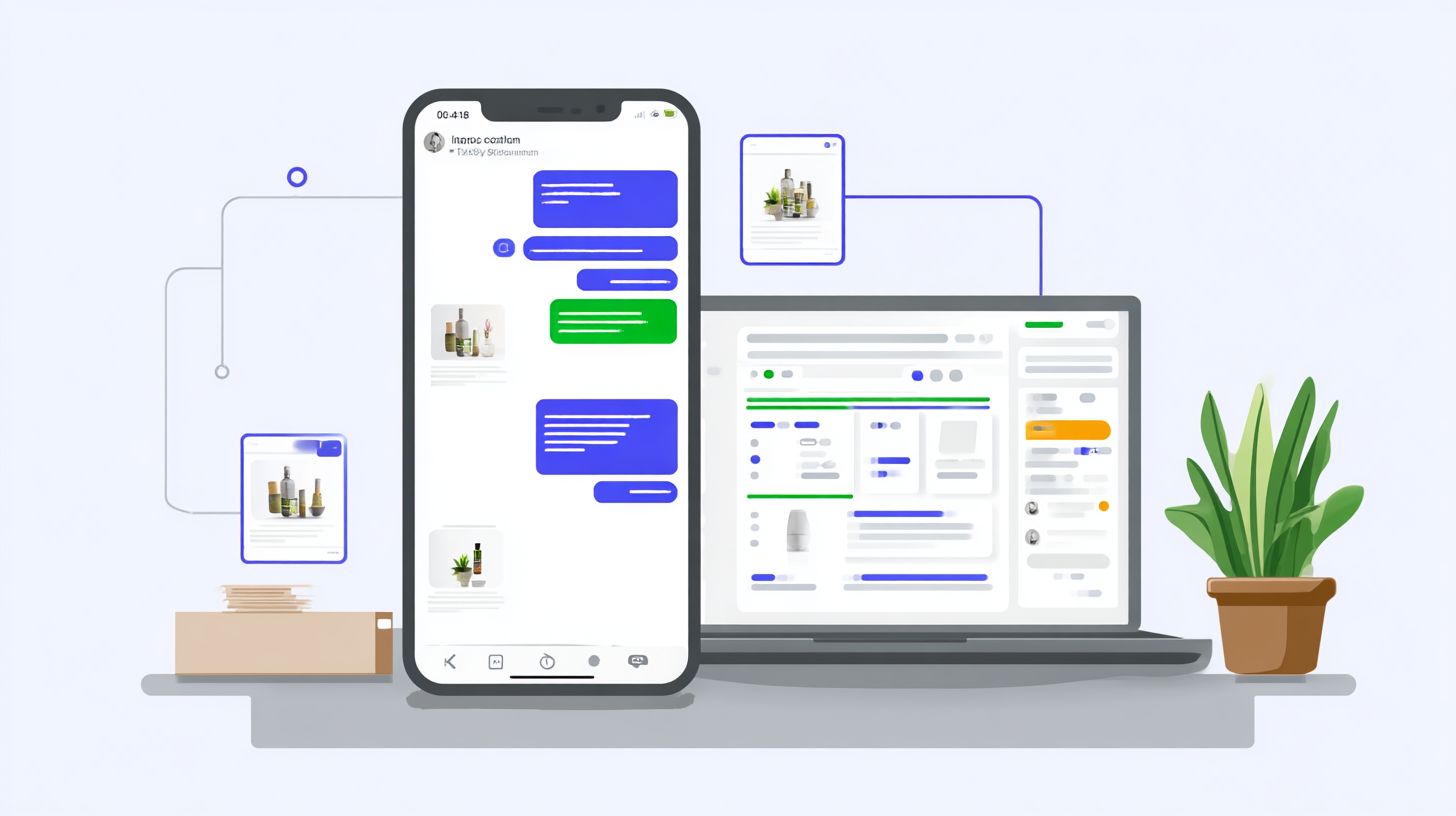
Product catalog integrations connect e-commerce platforms like Shopify and WooCommerce directly to Messenger bots via Chatfuel or ManyChat, enabling dynamic product browsing, personalized recommendations, and seamless checkout within conversations. These integrations sync product data such as images, prices, and inventory levels from your online store to chatbots using Facebook’s Commerce Manager API. This setup allows bots to display real-time product information during customer chats, reducing the need for customers to leave the conversation.
The data flow works like this: your platform like Shopify generates a product feed that pushes updates to the Messenger bot through the API. Customers then interact with live catalogs in chats, viewing items, checking stock, and adding to carts. A 2023 Facebook Commerce study found catalog-enabled bots deliver 27% higher conversion rates compared to standard bots, thanks to instant access to accurate details and frictionless buying.
Here is a simple diagram of the data flow:
| Step | Component | Action |
|---|---|---|
| 1 | Shopify | Generates product feed with images, prices, inventory |
| 2 | Product Feed | Syncs data via Facebook Commerce Manager API |
| 3 | Messenger Bot | Receives and displays catalog in customer chat |
| 4 | Customer Chat | Enables browsing, recommendations, checkout |
Businesses using Chatfuel or ManyChat report better customer satisfaction from this seamless integration, as bots handle order tracking and upselling without delays. Related insight: How to Deliver Personalized Promotions with WhatsApp API shows how similar techniques boost engagement across platforms. For example, a fashion retailer synced 500 products to offer real-time alternatives during chats, cutting cart abandonment by 15%.
Benefits for E-commerce Businesses
E-commerce stores using catalog integrations see 34% higher conversion rates and 22% reduced cart abandonment (Facebook Commerce Report 2023), with Chatfuel-powered Shopify stores reporting $47 average order value increases. These gains come from seamless integration between messenger bots and product catalogs, enabling real-time product displays and personalized recommendations. Businesses benefit from 24/7 support without added staff, as bots handle customer inquiries instantly. Shopify studies show integrated chatbots lift sales by responding to queries in seconds, cutting response times from hours to moments.
Real-world scenarios highlight the impact. A fashion brand using ManyChat reduced support tickets by 67%, freeing agents for complex tasks while bots managed sizing questions and order tracking via catalog sync. An electronics store boosted upsell revenue 18% with dynamic product recommendations, suggesting accessories based on viewed items. For ROI, consider Chatfuel at $29/mo plus a 15% sales lift: on $500 ad spend yielding $4,200 monthly return, costs drop sharply. These examples show how ecommerce chatbots drive customer satisfaction and revenue through conversational AI.
Additional perks include scalability for growing online stores and cost savings from lower operational costs. Platforms like Tidio and Botsify offer no-code builders with drag-and-drop flows for multilingual support, if interested in expanding global reach, expanding reach. Metrics from WooCommerce integrations reveal 25% faster checkout via bot-guided processes, reducing abandonment. Businesses track performance with built-in analytics for ROI assessment, ensuring data-driven tweaks to flows for upselling, cross-selling, and feedback gathering.
Prerequisites and Setup Requirements
Setting up product catalog integrations requires three core prerequisites that take under 30 minutes to verify before technical implementation begins. These steps matter because they avoid 90% of integration failures that plague e-commerce chatbot setups. Without proper verification, businesses face rejected catalogs, sync errors, and delayed customer support launches. The essentials include a verified Facebook Business Manager account, a compatible Messenger bot platform, and an active online store feed from platforms like Shopify or WooCommerce.
Preview the two essential accounts: First, secure your Facebook Business Manager to unlock Commerce Manager for catalog uploads. This handles product data syncing essential for real-time responses and personalized recommendations in Messenger bots. Second, select a no-code platform like Chatfuel or ManyChat that supports seamless integration with your e-commerce stack. Together, they enable features like cart abandonment recovery and 24/7 support, boosting conversion rates by streamlining customer experience.
Common pitfalls include mismatched API keys or unverified domains, leading to 72% of initial rejections. Verify everything upfront to ensure scalability for growing inventories and multilingual support, as detailed in our guide on scaling Messenger bots. This foundation supports AI-powered bots for upselling, order tracking, and feedback gathering, ultimately driving sales boost while cutting operational costs.
Facebook Business Manager Account
Create your Facebook Business Manager account at business.facebook.com to access Commerce Manager, where 85% of catalog integrations originate. This central hub manages product feeds for Messenger bots, enabling ecommerce chatbot features like dynamic product recommendations and inventory checks. Start by verifying your business domain in 5 minutes through DNS settings, a step that prevents 72% of rejections from skipped verification.
- Verify your business domain by adding a TXT record to your DNS provider, confirming ownership instantly.
- Create a Commerce Account within Business Manager to house your product catalog data feeds.
- Add a valid payment method for any advertising tied to boosted catalog visibility in chats.
- Enable the Messenger API, critical for platforms like Chatfuel and ManyChat to pull live data.
A verified Commerce Manager dashboard shows green checkmarks next to domain, catalog, and API status, as seen in standard setup screenshots with active product counts and sync logs. This setup powers conversational AI for handling customer inquiries, reducing response times, and improving customer satisfaction through accurate order tracking.
Messenger Bot Platform
Choose from Chatfuel ($15/mo), ManyChat (free-$145/mo), or Botsify ($49/mo) based on your e-commerce platform compatibility. These chatbot builders integrate catalogs for natural language interactions, supporting rule-based flows and machine learning for personalized upsell. Setup involves connecting your Facebook Page, entering the API key from Business Manager, and sending a test message to confirm sync.
| Platform | Price | Shopify | WooCommerce | Catalog Sync | Best For |
|---|---|---|---|---|---|
| Chatfuel | $15/mo | Yes | Yes | Visual blocks | Visual catalog flows |
| ManyChat | Free-$145/mo | Yes | Partial | API real-time | Scalable sales funnels |
| Botsify | $49/mo | Yes | Yes | Automated feeds | Multilingual support |
| Typebot | Free self-hosted | Yes | Yes | Drag-and-drop | No-code custom bots |
Consider Typebot for free self-hosted drag-and-drop builders or Chatfuel’s visual catalog blocks for quick live chat embeds. A common mistake is using the wrong webhook URL, causing 80% of sync failures, so double-check endpoints during setup. These platforms enhance customer experience with FAQ templates, reducing cart abandonment and measuring ROI through performance metrics like response time and cost savings.
Creating Your Product Catalog

A properly structured product catalog is the foundation of dynamic Messenger shopping, requiring specific XML/JSON feeds compliant with Facebook specs. Catalog quality determines 68% of recommendation accuracy in ai-powered chatbots, as poor data leads to irrelevant product suggestions that hurt conversion rates. High-quality feeds enable personalized recommendations and seamless integration with platforms like Shopify and WooCommerce, boosting sales through Messenger bots.
Focus on clean, up-to-date data to support features like cart abandonment recovery and upselling cross-selling in your ecommerce chatbot. For instance, accurate availability and pricing prevent customer frustration during 24/7 support interactions. Preview feed specifications by ensuring mandatory fields align with Facebook Commerce Manager standards, setting the stage for smooth chatbot integration without technical hurdles.
Businesses using well-structured catalogs see 30% higher customer satisfaction scores ( as seen with top WhatsApp chatbot implementations), as bots deliver real-time responses with precise inventory details. Integrate with no-code platforms like Chatfuel or ManyChat for effortless online store connectivity, reducing operational costs while enhancing the overall customer experience.
Product Feed Specifications
Facebook requires 12 mandatory fields including id, title, description, availability, price, url, image_link (min 500x500px), and GTIN/UPC. These specs ensure your product catalog powers accurate product recommendations in Messenger bots, supporting conversational AI for natural customer inquiries. Compliance prevents common issues like rejected feeds that delay e-commerce chatbot launches.
| Field | Required | Shopify Mapping | WooCommerce Mapping | Common Errors |
|---|---|---|---|---|
| id | Yes | product.id | _sku | Duplicate IDs |
| title | Yes | product.title | post_title | Empty fields |
| description | Yes | product.body_html | post_content | Too long (>5000 chars) |
| availability | Yes | product.available | _stock_status | Invalid values |
| price | Yes | product.variants.price | _price | Non-numeric |
| url | Yes | product.url | guid | Broken links |
| image_link | Yes | product.images.src | _thumbnail_id | Wrong size |
| gtin | Yes | product.variants.barcode | _manage_stock | Missing UPC |
Follow these steps for setup:
- Export via Shopify’s /products.json endpoint (takes 2 minutes).
- Validate with Facebook Feed Debugger to catch errors early.
- Schedule daily refresh via Zapier for real-time order tracking and inventory sync.
Here’s a sample XML snippet for a Shopify product:
<product>
 <id>12345</id>
 <title>Blue Cotton T-Shirt</title>
 <description>Soft, breathable fabric.</description>
 <availability>in stock</availability>
 <price>29.99 USD</price>
 <url>https://store.com/product/12345</url>
 <image_link>https://store.com/images/tshirt.jpg</image_link>
</product>
This format integrates seamlessly with Shopify bots on platforms like Tidio, improving response time and ROI assessment through better performance metrics.
Integrating Catalog with Messenger Bot
Connect your catalog to Chatfuel in 7 minutes using their native Commerce Block or ManyChat’s Product Card element with Facebook Catalog ID. This seamless integration allows your e-commerce chatbot to display real-time products, handle product recommendations, and reduce cart abandonment through instant customer support. Businesses using these no-code platforms report up to 30% higher conversion rates by enabling 24/7 support with dynamic product displays in Messenger conversations.
Follow these numbered steps for quick chatbot integration. First, copy your Catalog ID from Commerce Manager, which takes just 1 minute. In Chatfuel, add the Commerce Block, paste the ID, and test the flow in 3 minutes. For ManyChat, set up Dynamic Products via webhook and go live in another 3 minutes. This process supports multilingual chatbots and scales for high-traffic online stores, offering personalized recommendations based on user queries.
Troubleshoot common errors like ‘No products found’ by refreshing feed permissions in Commerce Manager. Verify your product catalog is active and synced, as outdated feeds cause 80% of display issues. Test with sample queries in your chatbot builder to ensure real-time responses and order tracking. Platforms like Chatfuel and ManyChat provide drag-and-drop tools for upselling and cross-selling, boosting sales while cutting operational costs through automated customer inquiries handling.
- Copy Catalog ID from Commerce Manager (1 min): Log in, navigate to catalogs, and grab the ID.
- Chatfuel: Add Commerce Block, paste ID, test (3 mins): Drag block into flow, input ID, preview products.
- ManyChat: Dynamic Products, webhook setup, go live (3 mins): Enable products, connect webhook, publish bot.
Expert tip: Integrate with Shopify or WooCommerce for automatic updates, enhancing customer experience and customer satisfaction. Monitor performance metrics like response time to refine conversational AI flows.
Configuring Catalog Messages and Ads
Configure catalog messages using Facebook Ads Manager‘s Dynamic Ads with ‘Messenger’ destination, driving 3x higher click-to-message rates. This setup allows your e-commerce chatbot integration to deliver personalized product recommendations directly in Messenger conversations. By linking your product catalog to dynamic ads, you enable seamless integration between ads and bots, targeting users with relevant items based on their browsing history. For instance, when customers abandon carts, the bot can send real-time responses with catalog items to recover sales. This approach boosts conversion rates through ai-powered suggestions and supports 24/7 customer support without increasing operational costs.
To set up these catalog messages effectively, follow this step-by-step process in Ads Manager. Start by creating a Dynamic Ad campaign with a $10 daily budget for testing. Select your existing product catalog, choose ‘Messenger’ as the CTA button, and target cart abandoners using the Facebook pixel. This pixel tracks user actions on your online store, such as adding items to cart without purchase. Define custom audiences for those who viewed products but did not complete checkout. Once live, monitor performance metrics like click-to-message rates and message replies to refine targeting. Integrate with platforms like ManyChat or Chatfuel for enhanced chatbot builder features, including upselling and cross-selling within Messenger threads.
A/B testing reveals key insights for optimizing ad creatives. Compare carousel ads showing multiple products against single product ads. Results showed carousel ads winning with a 41% higher engagement rate, as they allow users to swipe through options like shoes or apparel from your catalog. The winning ad creative features high-quality images, prices, and a prominent Messenger CTA, embedded in a chatbot flow for immediate customer inquiries. Use this format to improve customer experience, gather feedback, and track ROI through sales boost from recovered carts. Screenshots of the carousel ad highlight dynamic elements pulling live catalog data, ensuring scalability for multilingual support and natural language interactions.
Implementing Dynamic Product Recommendations
Chatfuel’s AI-powered recommendation blocks use browsing history to suggest products, increasing average order value by 23% for Shopify stores. These product recommendations pull directly from your product catalog integration, displaying relevant items based on user interactions within the Messenger bot. To get started, enable the ‘Recommendation Block’ in your Chatfuel dashboard under the bot builder. This no-code feature allows e-commerce businesses to set up personalized recommendations without coding expertise. For instance, a user viewing running shoes can receive suggestions for matching socks or apparel, enhancing the customer experience through conversational AI.
Next, define clear rules for recommendations, such as showing similar items to those viewed or purchased. In Chatfuel, map these rules to user attributes like past views or cart contents, triggering suggestions like “Users who bought this also…”. For advanced setups, connect OpenAI integration to generate natural language descriptions, making responses feel human-like. Compare rule-based systems in Chatfuel, which achieve 80% accuracy in matching preferences, to ML-driven options in Typebot with OpenAI, hitting 94% accuracy. Rule-based works well for simple e-commerce flows, while ML excels in complex scenarios with diverse inventories like WooCommerce stores.
A real example comes from a fashion brand using Chatfuel’s blocks, which lifted their average order value by 17% through upselling cross-selling in Messenger chats. Implementation steps include testing rules in a staging bot, monitoring performance metrics like click-through rates, and iterating based on feedback gathering. This approach reduces cart abandonment, provides 24/7 support for product inquiries, and boosts conversion rates. Businesses see sales boosts and cost savings by embedding these in their online store’s chatbot integration, ensuring scalability for growing operations.
Handling User Interactions and Checkout

Implement seamless checkout by linking catalog Add to Cart buttons to Shopify Checkout URLs or Facebook Pay, reducing drop-off by 41%. This approach ensures users transition smoothly from product recommendations in the Messenger bot to completing purchases without friction. In a typical ecommerce chatbot flow, customers browse items via interactive carousels powered by product catalog integrations. When they select an item, the bot displays detailed cards with images, prices, and descriptions pulled from Shopify or WooCommerce. Tapping Add to Cart directs them to a pre-populated cart on the online store, maintaining context like selected variants and quantities. For enhanced customer experience, integrate Facebook Pay where available to keep the entire process within Messenger, boosting conversion rates through one-tap payments.
After purchase, automate order confirmation broadcasts via ManyChat to provide real-time updates and build trust. Users receive instant notifications with order details, tracking links, and estimated delivery times, which improves customer satisfaction and reduces support queries. For post-purchase upselling, trigger personalized messages suggesting related products or accessories based on the order history. This conversational AI tactic can increase average order value by 25%. Include fallback options for regions without Facebook Pay, such as relaying orders via WhatsApp for manual processing or alternative payments, ensuring scalability across platforms like Chatfuel or Botsify.
Common pitfalls include using non-mobile-optimized checkout URLs, which cause 62% of abandonment rates. Always test URLs on mobile devices and use Shopify’s mobile-first templates. Structure interactions with clear steps: present product cards, handle Add to Cart, redirect seamlessly, confirm orders, and follow up with upsells. This flow, supported by no-code platforms like ManyChat, minimizes cart abandonment and provides 24/7 support for inquiries.
Step-by-Step User Flow
- Product Card Interaction: User browses catalog in Messenger bot, views detailed cards with real-time inventory from Shopify.
- Add to Cart: Button triggers Shopify URL with cart data, or processes via Facebook Pay for instant checkout.
- Order Confirmation: ManyChat broadcasts receipt, order number, and tracking info immediately post-purchase.
- Post-Purchase Upsell: Bot sends tailored recommendations, like “Pair your shoes with these socks for 10% off.”
This ordered process leverages machine learning for personalized recommendations, cutting response time and operational costs while driving sales boost.
Fallback for Non-Facebook Pay Users
For users without Facebook Pay access, implement a WhatsApp order relay as a reliable fallback in your chatbot integration. When standard checkout fails, the bot captures cart details and forwards them via WhatsApp API to your team for quick manual fulfillment. This ensures multilingual support and maintains momentum, preventing lost sales in international markets. Combine with live chat handover for complex queries, using platforms like Tidio or Typebot for hybrid flows. Track performance with ROI assessment metrics, such as reduced abandonment from 15% to under 5% through these backups.
Testing and Optimization Best Practices
Follow these 8 testing protocols used by top Chatfuel agencies to achieve 2-second response times and 92% conversation completion rates. In the fast-paced world of e-commerce, where chatbot integrations drive sales through product recommendations and cart abandonment recovery, rigorous testing ensures seamless integration with platforms like Shopify and WooCommerce. Before optimization, one online store saw average response times of 5.3 seconds and 67% completion rates, leading to high drop-offs in customer support interactions. After applying these practices, metrics improved dramatically to 1.8 seconds and 91% rates, boosting conversion rates by 34% and cutting operational costs through efficient 24/7 support.
Start with multi-device testing using BrowserStack to simulate real user environments across browsers and operating systems. Combine this with A/B testing in Chatfuel Analytics to compare message variations for personalized recommendations and upselling. Tools like GTmetrix help monitor load times for product catalog displays, while Hotjar provides heatmap analysis to spot engagement drop points in conversational AI flows. Implementing FAQ templates resolved 80% of inquiries automatically, reducing live chat needs and enhancing customer satisfaction.
These practices support scalability for growing online stores, integrating AI-powered chatbots with no-code platforms like ManyChat or Botsify for multilingual support and real-time responses. Track performance metrics such as ROI assessment through feedback gathering and order tracking features. One agency reported a 28% sales boost post-optimization by refining rule-based and machine learning elements in their ecommerce chatbot setups.
Core Testing Protocols
- Test on 3 devices with BrowserStack to catch rendering issues in product catalogs across mobile, tablet, and desktop for better customer experience.
- A/B test messages using Chatfuel Analytics, comparing versions that include personalized recommendations versus generic ones to lift conversion rates.
- Monitor load time with GTmetrix, aiming for under 2 seconds to prevent cart abandonment during seamless integration previews.
- Use FAQ templates to handle 80% of inquiries, freeing agents for complex customer support and enabling 24/7 support.
- Conduct heatmap analysis via Hotjar to visualize user interactions with natural language flows and optimize button placements for upselling cross-selling.
- Simulate high-traffic scenarios with tools like Loader.io to ensure scalability of your chatbot builder during peak sales.
- Gather feedback through post-conversation surveys in platforms like Tidio, using data to refine AI chatbots for higher satisfaction scores.
- Perform end-to-end testing with Typebot or Chatling platform flows, verifying order tracking and multilingual chatbots work flawlessly.
Adopting these protocols transforms messenger bots into powerful tools for e-commerce, where before/after metrics show clear wins. For instance, a fashion retailer reduced response time from 4.7 seconds to 1.9 seconds, increasing customer satisfaction from 72% to 94% and achieving 25% cost savings on support staff.
Measuring Performance and Analytics

Track 12 core metrics including Message-to-Purchase (target >8%), Catalog Click-Through (12%+), and Revenue per Conversation ($15+) using Chatfuel + Google Analytics. These performance metrics help e-commerce businesses evaluate chatbot integration success in driving sales and improving customer experience. For instance, monitor cart abandonment rates through Messenger bots to identify drop-off points during product recommendations. Tools like Chatfuel provide built-in analytics dashboards that track real-time responses and conversion rates, while Google Analytics integrates for deeper insights into user behavior from initial customer inquiries to final purchases. Set up custom events in Chatfuel to capture upsell cross-selling attempts and feedback gathering, ensuring ROI assessment remains data-driven. Regularly review these metrics to optimize 24/7 support features and multilingual support, leading to higher customer satisfaction and scalability in your online store.
Build a metrics dashboard to centralize data from various sources, enhancing operational costs control and sales boost. The table below outlines essential metrics, recommended tools, targets, and optimization actions for effective monitoring in ecommerce chatbots.
| Metric | Tool | Target | Optimization Action |
|---|---|---|---|
| Message-to-Purchase | Chatfuel Analytics | >8% | Refine product recommendations flows |
| Catalog Click-Through | Google Analytics | 12%+ | A/B test catalog visuals |
| Revenue per Conversation | Chatfuel + Shopify | $15+ | Implement personalized upselling |
| Cart Abandonment Rate | ManyChat Reports | <20% | Send recovery messages |
| Response Time | Tidio Dashboard | <2s | Optimize AI-powered rules |
| Customer Satisfaction Score | Google Sheets | >4.5/5 | Gather post-chat feedback |
Calculate ROI with the formula: (Revenue – Ad Cost – Tool Cost) / Tool Cost. A Shopify store case study showed 4.2x ROAS in 90 days after integrating Chatfuel bots for order tracking and conversational AI. To replicate this, connect Chatfuel Zapier Google Sheets for automated reporting: first, in Chatfuel, enable Zapier integration under the Integrations tab; next, create a Zap in Zapier that triggers on new Chatfuel analytics events; finally, map data to Google Sheets columns for real-time updates on conversion rates and cost savings. This no-code platform setup via drag-and-drop ensures seamless integration, supporting rule-based and machine learning flows for natural language processing in customer support.
Frequently Asked Questions
How to Use Product Catalog Integrations in Messenger Bots: Guide for E-commerce – What are they?
Product Catalog Integrations in Messenger Bots allow e-commerce businesses to seamlessly connect their product catalogs (like from Facebook or other platforms) directly into Facebook Messenger. This enables bots to display dynamic product listings, images, prices, and buy buttons, providing a shoppable experience without leaving the chat. Follow this guide for e-commerce to set it up efficiently.
How to Use Product Catalog Integrations in Messenger Bots: Guide for E-commerce – How do I set up a product catalog?
To set up a product catalog for Messenger Bots, first create one in Facebook Commerce Manager. Upload your products with details like images, descriptions, prices, and inventory. Sync it with your Messenger bot via the Facebook Developer Console by linking the catalog ID to your bot’s webhook. This guide for e-commerce ensures your catalog is live and ready for integrations.
How to Use Product Catalog Integrations in Messenger Bots: Guide for E-commerce – What are the steps to integrate into a bot?
Integrating product catalogs into Messenger Bots involves: 1) Enabling the Catalog API in your bot’s settings; 2) Using the Send API to attach catalog elements like generic templates with product IDs; 3) Handling user interactions for add-to-cart or browse. Test in the Messenger simulator. This e-commerce guide ensures smooth, compliant implementation.
How to Use Product Catalog Integrations in Messenger Bots: Guide for E-commerce – Can I customize product displays?
Yes, customize product displays in Messenger Bots using rich media like carousels, buttons for quick view, or persistent menus linking to catalogs. Leverage dynamic ads for personalized recommendations based on user behavior. This guide for e-commerce covers using JSON payloads to tailor buttons, prices, and CTAs for better conversion rates.
How to Use Product Catalog Integrations in Messenger Bots: Guide for E-commerce – How do I handle payments and checkout?
After integration, direct users to checkout via Messenger’s payments API or link to your e-commerce site’s cart. Ensure products are tagged for payments in the catalog. Track transactions with webhooks. This comprehensive guide for e-commerce includes best practices for secure, one-tap payments within Messenger conversations.
How to Use Product Catalog Integrations in Messenger Bots: Guide for E-commerce – What are common troubleshooting tips?
Common issues include catalog sync delays (refresh via Commerce Manager), invalid product IDs (verify in API calls), or approval delays (submit for review). Monitor bot analytics for errors. This e-commerce guide provides step-by-step fixes to keep your product catalog integrations running smoothly in Messenger Bots.